

Widgets
In addition to the core features of our platform, we offer a flexible solution for integrating specific sections directly into your customers’ CRM systems or other web applications. This is accomplished through the use of “widgets” that can be embedded via iframes.
What is a Widget?
Section titled “What is a Widget?”A widget is a customizable, self-contained section of our platform that can be embedded into external systems. These widgets are designed to seamlessly integrate with other applications, allowing users to access key functionalities without leaving their current environment.
Available Widgets
Section titled “Available Widgets”Currently, the following sections of our platform are available as widgets:
-
Upload Panoramas: This widget provides functionality for uploading and managing panoramic images. Users can easily add and update panoramic content associated with their properties.
-
Property Details: This widget allows users to view detailed information about properties directly within their CRM. It includes all relevant data fields and features associated with property listings.
-
Property List: This widget enables users to view and manage a list of properties. It displays an overview of multiple properties, allowing users to quickly access key information and navigate between listings.
Embedding Widgets
Section titled “Embedding Widgets”To embed a widget into a CRM or other external system, you can use an iframe. Each widget can be customized with a private label to ensure it aligns with your branding and integrates smoothly into the client’s interface.
Upload Panoramas Widget
Section titled “Upload Panoramas Widget”
Steps to Embed:
Section titled “Steps to Embed:”-
Generate the Widget URL: Obtain the URL for the Upload Panoramas widget from our platform’s settings or API documentation.
-
Customize the Private Label: Adjust the widget settings to reflect your branding or the client’s preferences. This can include custom colors, logos, and other visual elements.
-
Embed Using an Iframe: Insert the widget URL into an iframe tag within the external system. Ensure the iframe settings (such as width and height) are configured to fit the desired display area.
<iframe src="https://agency.floorfy.com/es/tour/edit?tk=YOUR_TK&id=TOUR_ID" width="100%" height="600px" frameborder="0" allowfullscreen></iframe> -
Test Integration: Verify that the Upload Panoramas widget functions correctly within the external system and meets all integration requirements.
Property List Widget
Section titled “Property List Widget”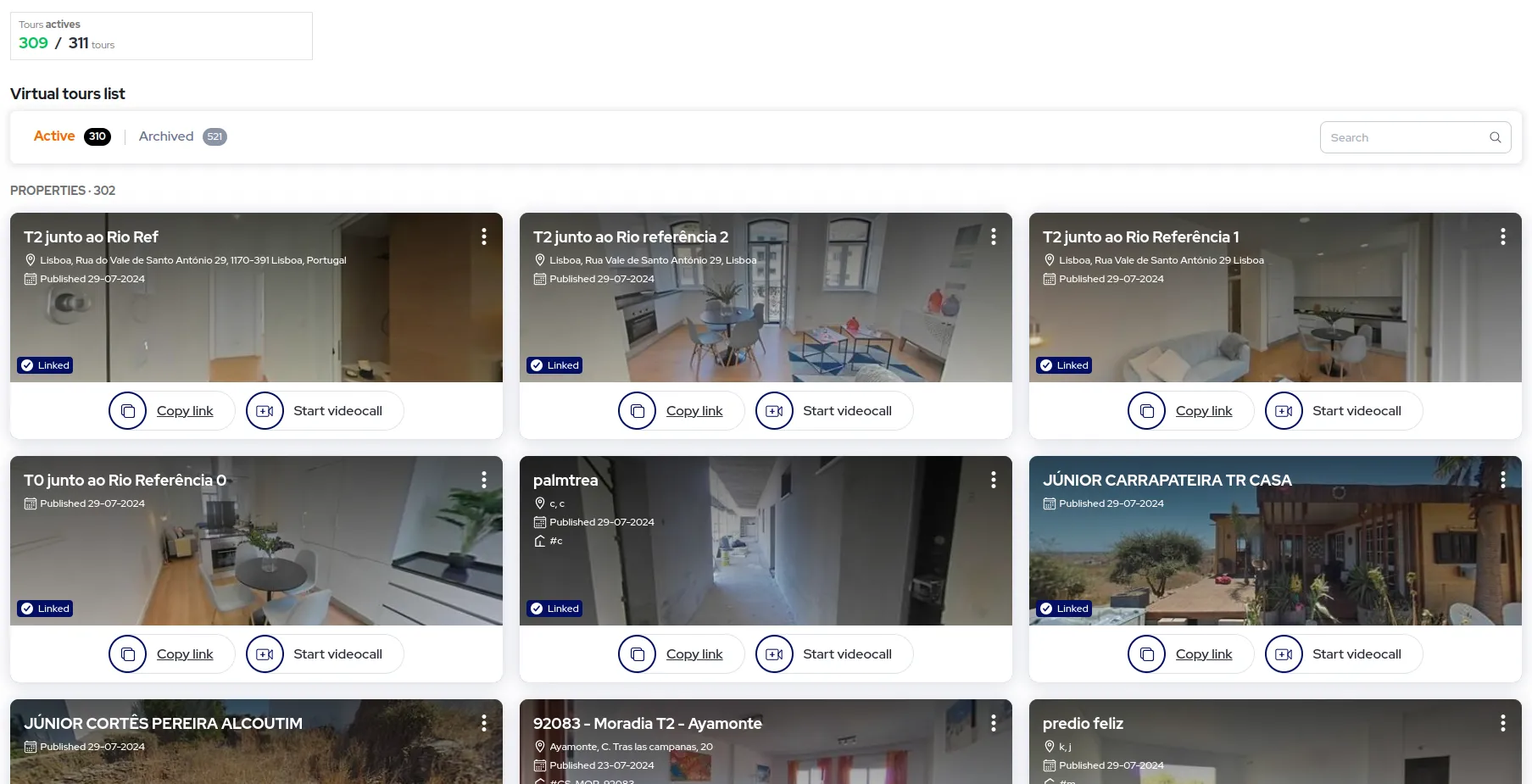
Steps to Embed:
Section titled “Steps to Embed:”-
Generate the Widget URL: Obtain the URL for the Property List widget from our platform’s settings or API documentation.
-
Customize the Private Label:Adjust the widget settings to reflect your branding or the client’s preferences. This can include custom colors, logos, and other visual elements.
-
Embed Using an Iframe: Insert the widget URL into an iframe tag within the external system. Ensure the iframe settings (such as width and height) are configured to fit the desired display area.
<iframe src="https://agency.floorfy.com/integrated/property/list" width="100%" height="600px" frameborder="0" allowfullscreen></iframe> -
Test Integration: Verify that the Property List widget functions correctly within the external system and meets all integration requirements.
Property Details Widget
Section titled “Property Details Widget”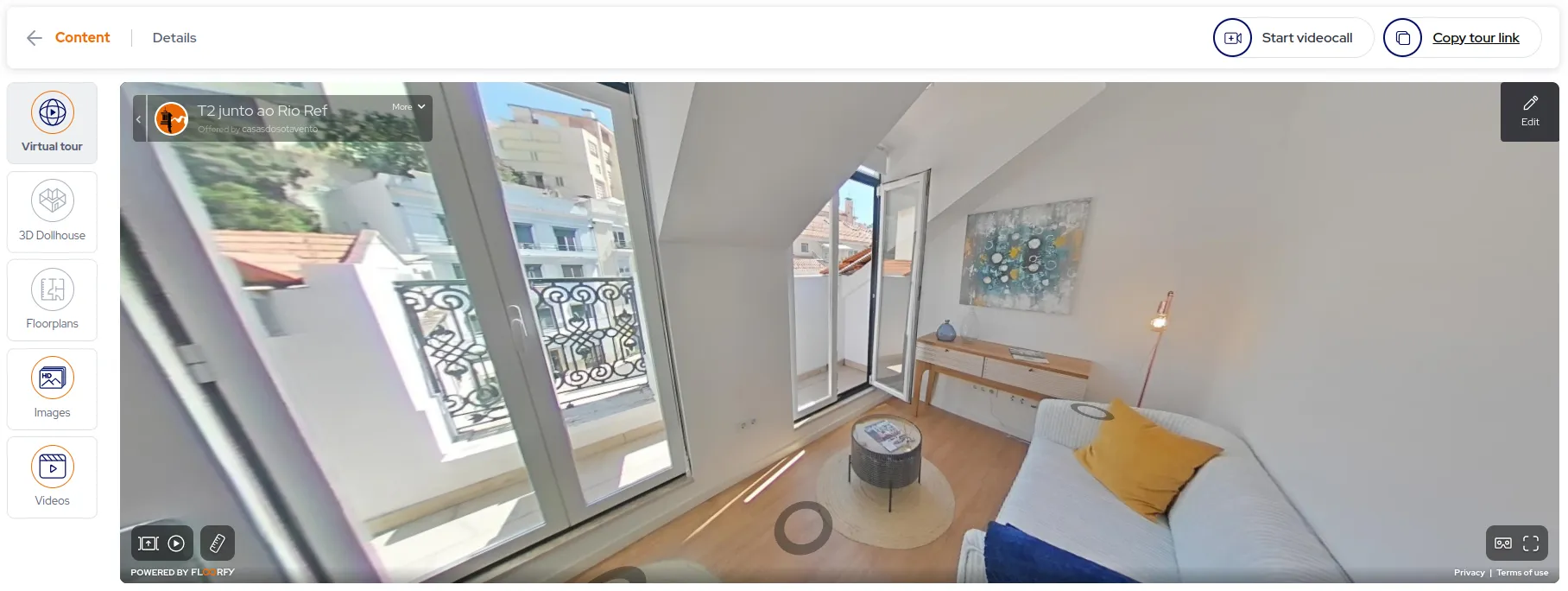
Steps to Embed:
Section titled “Steps to Embed:”-
Generate the Widget URL: Obtain the URL for the Property Details widget from our platform’s settings or API documentation.
-
Customize the Private Label:Adjust the widget settings to reflect your branding or the client’s preferences. This can include custom colors, logos, and other visual elements.
-
Embed Using an Iframe: Insert the widget URL into an iframe tag within the external system. Ensure the iframe settings (such as width and height) are configured to fit the desired display area.
<iframe src="https://agency.floorfy.com/integrated/property/detail/TOUR_ID" width="100%" height="600px" frameborder="0" allowfullscreen></iframe> -
Test Integration: Verify that the Property Details widget functions correctly within the external system and meets all integration requirements.
Benefits of Using Widgets
Section titled “Benefits of Using Widgets”-
Seamless Integration: Widgets provide a smooth user experience by allowing key functionalities to be accessed without leaving the current application.
-
Customizable Branding: With private labeling, widgets can be tailored to match the branding of your customers or your organization.
-
Enhanced Efficiency: Streamline workflows and improve productivity by integrating essential features directly into your CRM or other systems.
For more detailed information on customizing and embedding widgets, refer to our API Documentation or contact our support team.